Mercuryo gives new users a direct route from fiat currency to Injective.
Choose INJ, enter your Injective wallet address, pay with a supported bank card, and receive the tokens directly in your wallet. You do not need to purchase another asset or use a separate bridge.
This guide covers the full process with MetaMask, Keplr, or any other Injective-supported wallet. Both wallets support Injective and give you control of your assets. Read more in the Injective wallet documentation.
Before you begin
You need:
- MetaMask or Keplr installed and set up
- Access to the Injective Hub
- An email address you can access
- A supported bank card
- A valid government-issued identity document (if Mercuryo requests verification)
- A device with a camera for the identity check
Mercuryo availability, payment limits, accepted documents, and supported cards depend on your country. Your bank must also permit cryptocurrency purchases.
Always check the domain before entering personal or payment information. The official widget used in this guide is exchange.mercuryo.io.
Never share your wallet recovery phrase, private key, password, or email verification code with anyone.
Step 1 - Copy Your Injective Wallet Address
Open the Injective Hub and select the wallet control in the upper right corner.
Choose MetaMask or Keplr. Follow the wallet prompt to approve the connection.
The Hub will display the Injective address tied to your connected account. It begins with inj.
Copy this address. Check the first and last characters before moving forward.
MetaMask users must copy the inj address shown by Injective Hub, not the Ethereum address beginning with 0x. Keplr users must confirm that Injective is the selected network before copying the address.

Step 2 - Open the Mercuryo Widget
Go to the Mercuryo purchase widget.
Confirm that the browser address begins with https://exchange.mercuryo.io/.
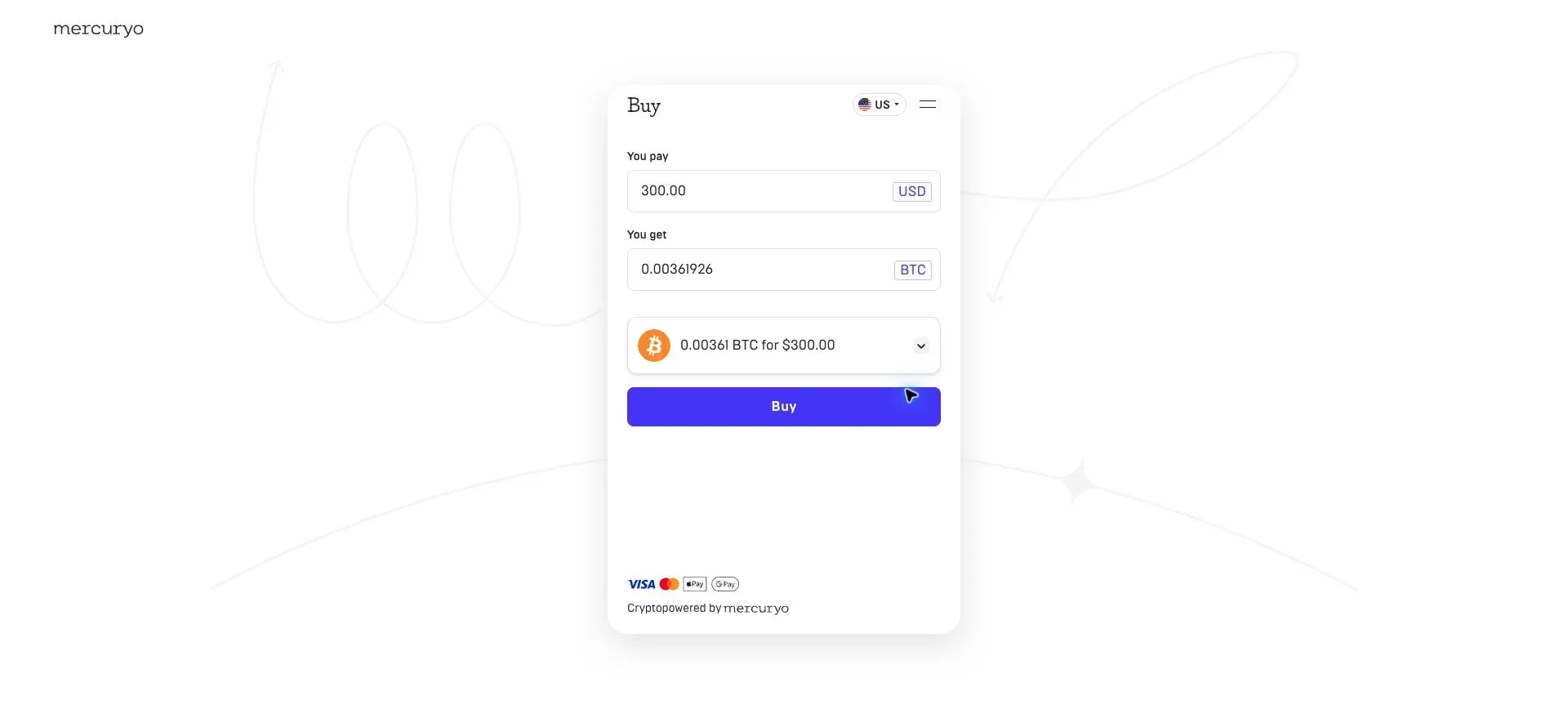
The purchase interface shows a fiat amount, a cryptocurrency selector, an estimated quote, and the Buy button.
Step 3 - Select INJ
Open the cryptocurrency selector. The widget may show another asset when it first loads.
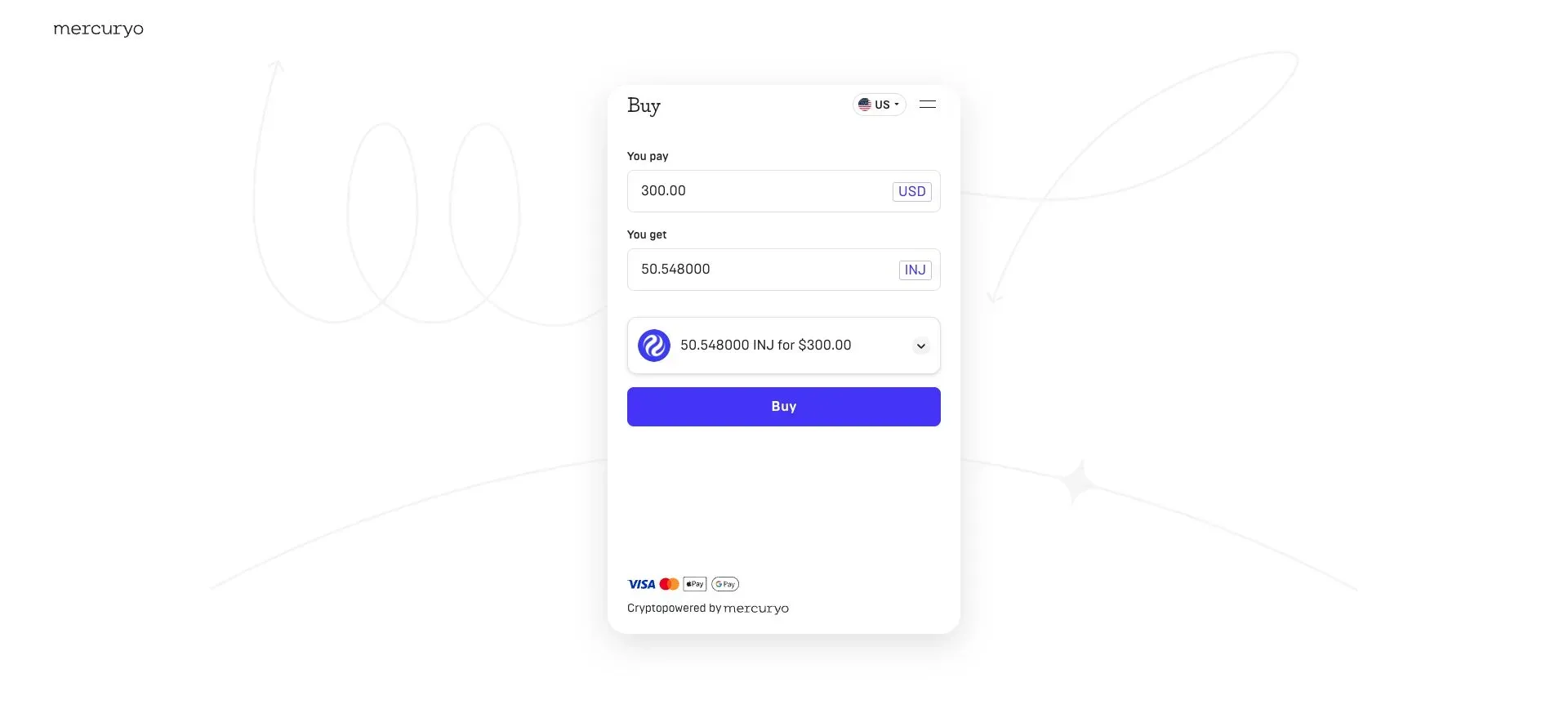
Search for INJ and choose Injective.
Confirm that the asset field now shows INJ before entering your purchase amount.
Step 4 - Choose Your Fiat Currency and Amount
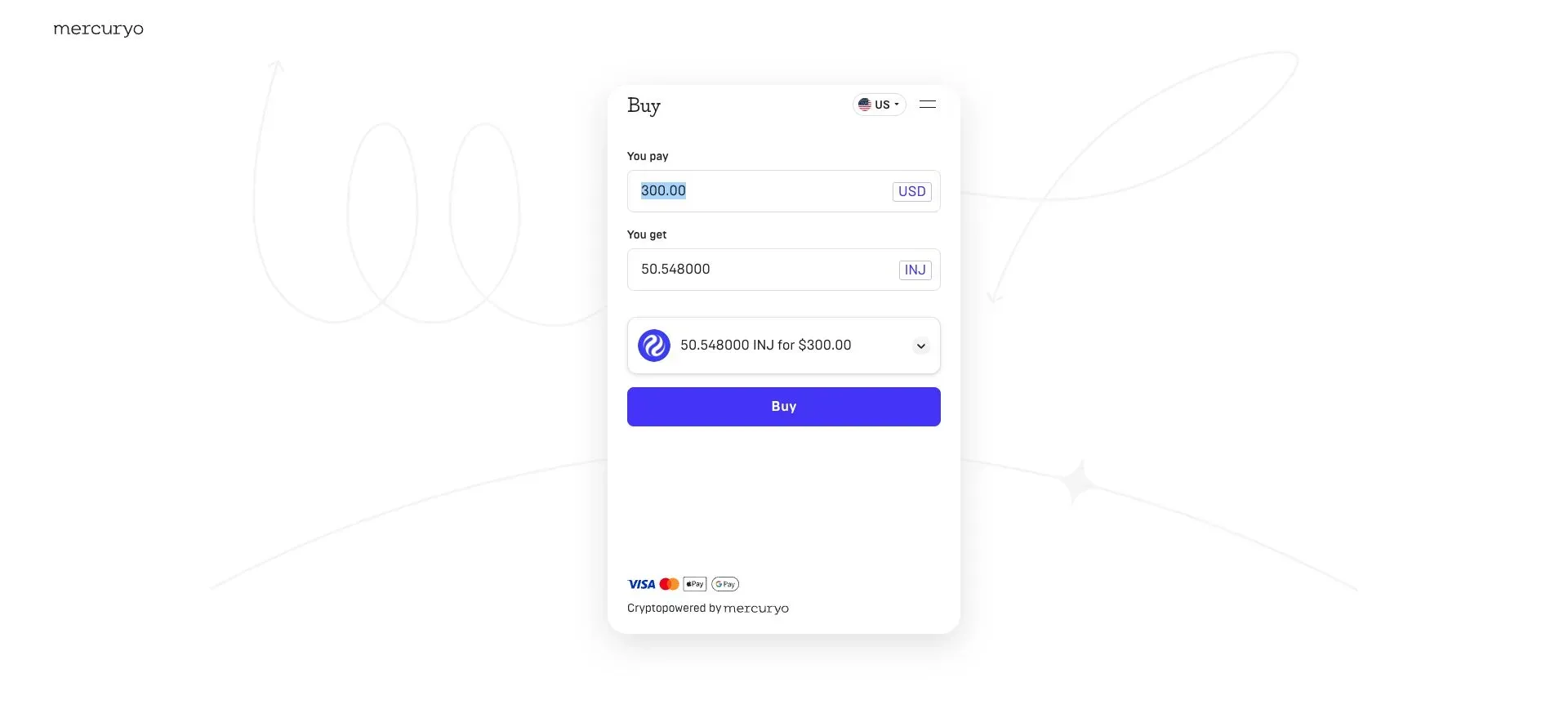
Open the fiat currency selector and choose the currency you want to spend.
Enter the purchase amount. Mercuryo will calculate the estimated amount of INJ you will receive.
The quote can change with the market. The final amount appears before you approve the card payment.
Step 5 - Review the Quote and Fees
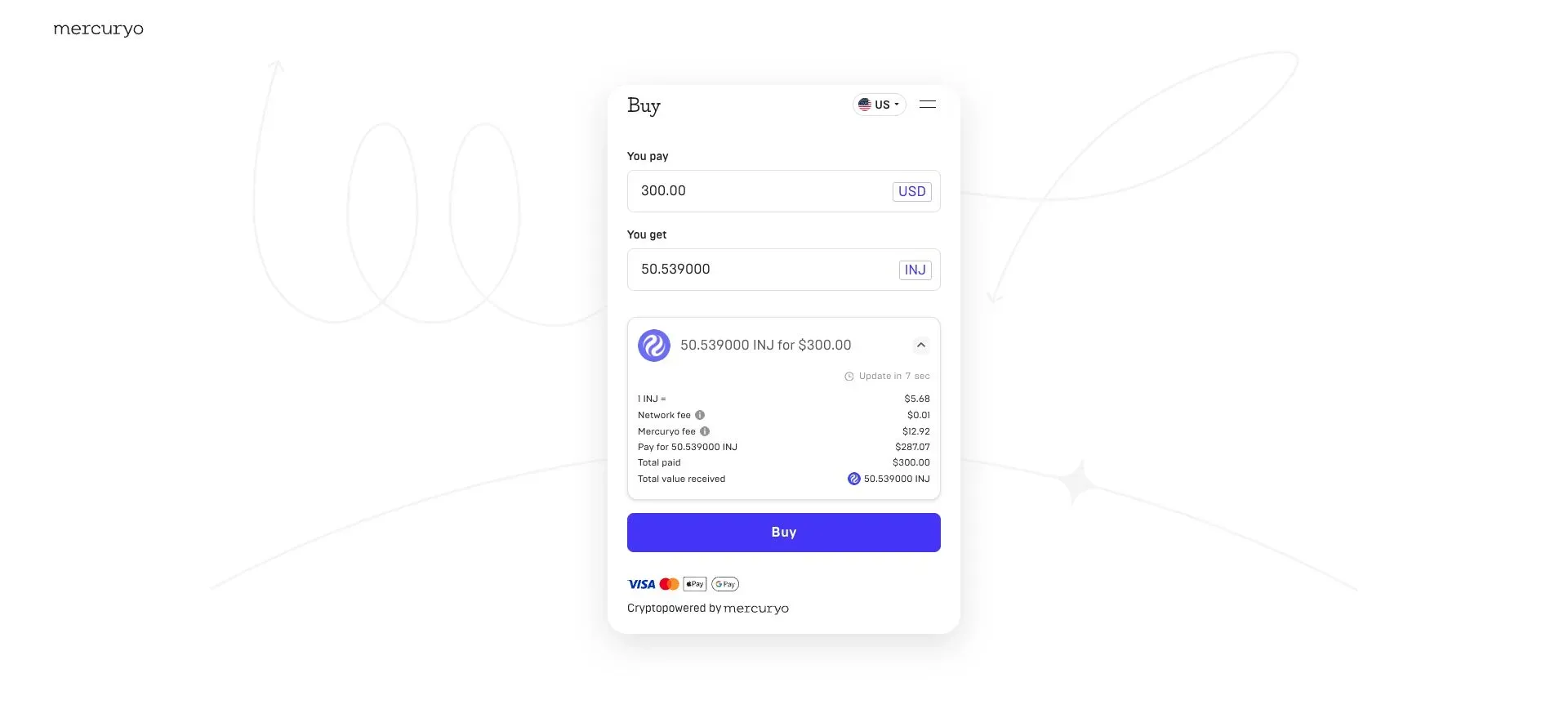
Open the order details below the quoted amount.
Review:
- The fiat amount
- The estimated INJ amount
- The exchange rate
- Mercuryo fees
- Network fees
- The total card charge
Confirm that the final amount matches your expectations. Fees and limits can change based on the purchase amount, currency, payment method, and location.
Mercuryo explains how to view these charges in its widget purchase guide.
Step 6 - Enter Your Injective Wallet Address
Select Buy.
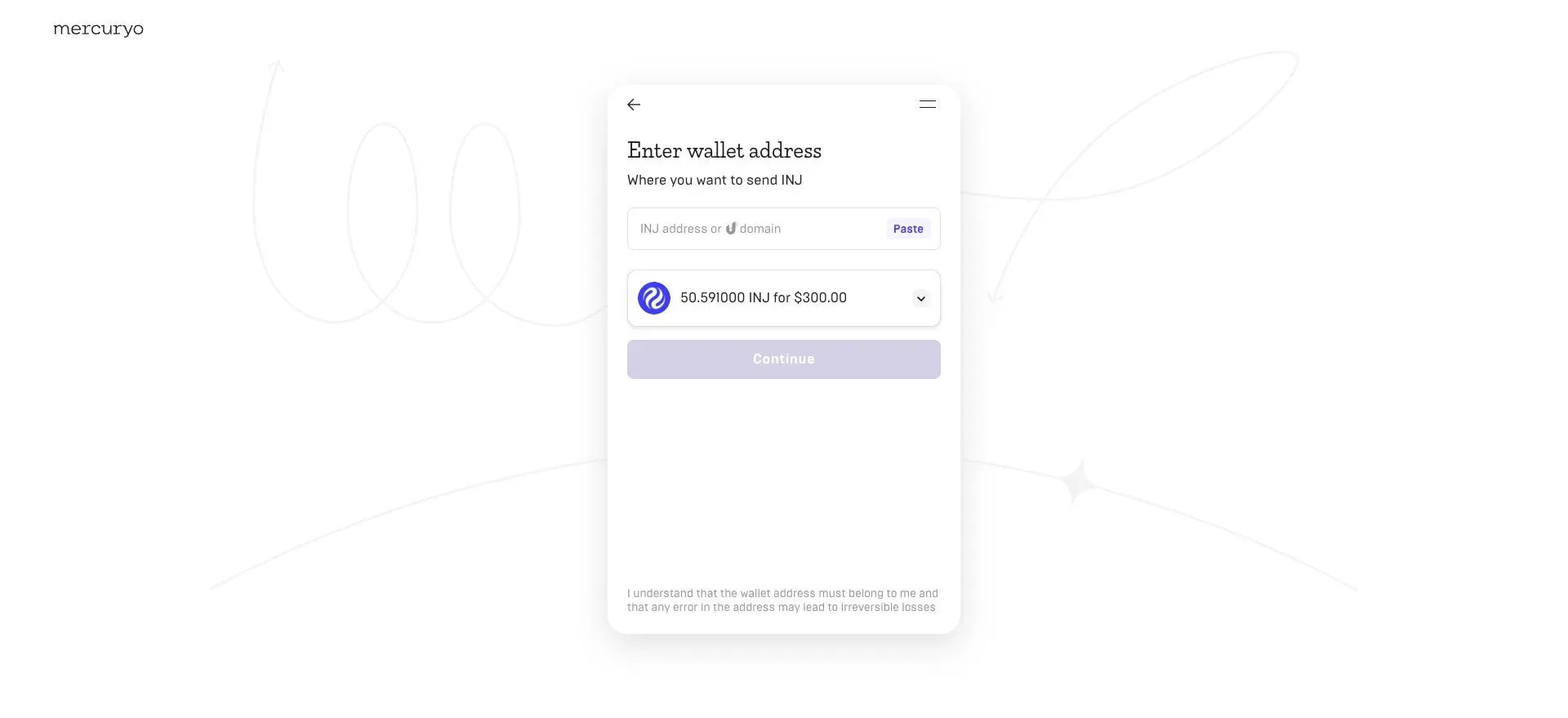
Mercuryo will ask where you want to send the INJ. Paste the inj address copied from Injective Hub into the wallet address field.
Compare the first and last characters with the address displayed in your wallet. Confirm that the address belongs to you.
Do not type the address manually. An incorrect destination can cause permanent loss.
Select Continue once every character matches.
Step 7 - Confirm Your Email
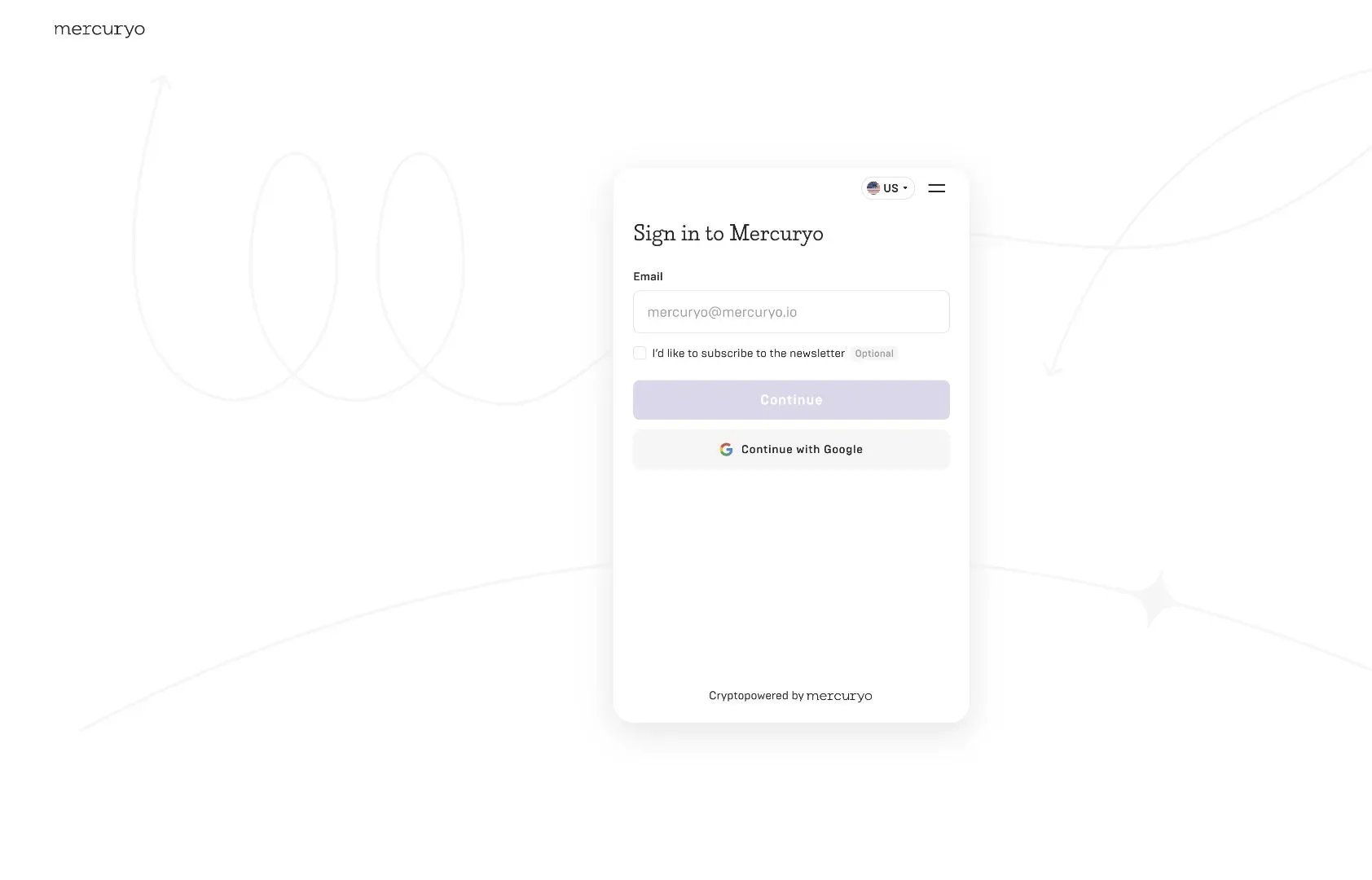
Enter an email address you can access.
Mercuryo will send a verification code to that address. Enter the code to continue.
Existing Mercuryo users may also need to enter their account password. Follow the instructions shown for your account.
Never share the verification code or password with another person.
Step 8 - Complete Identity Verification
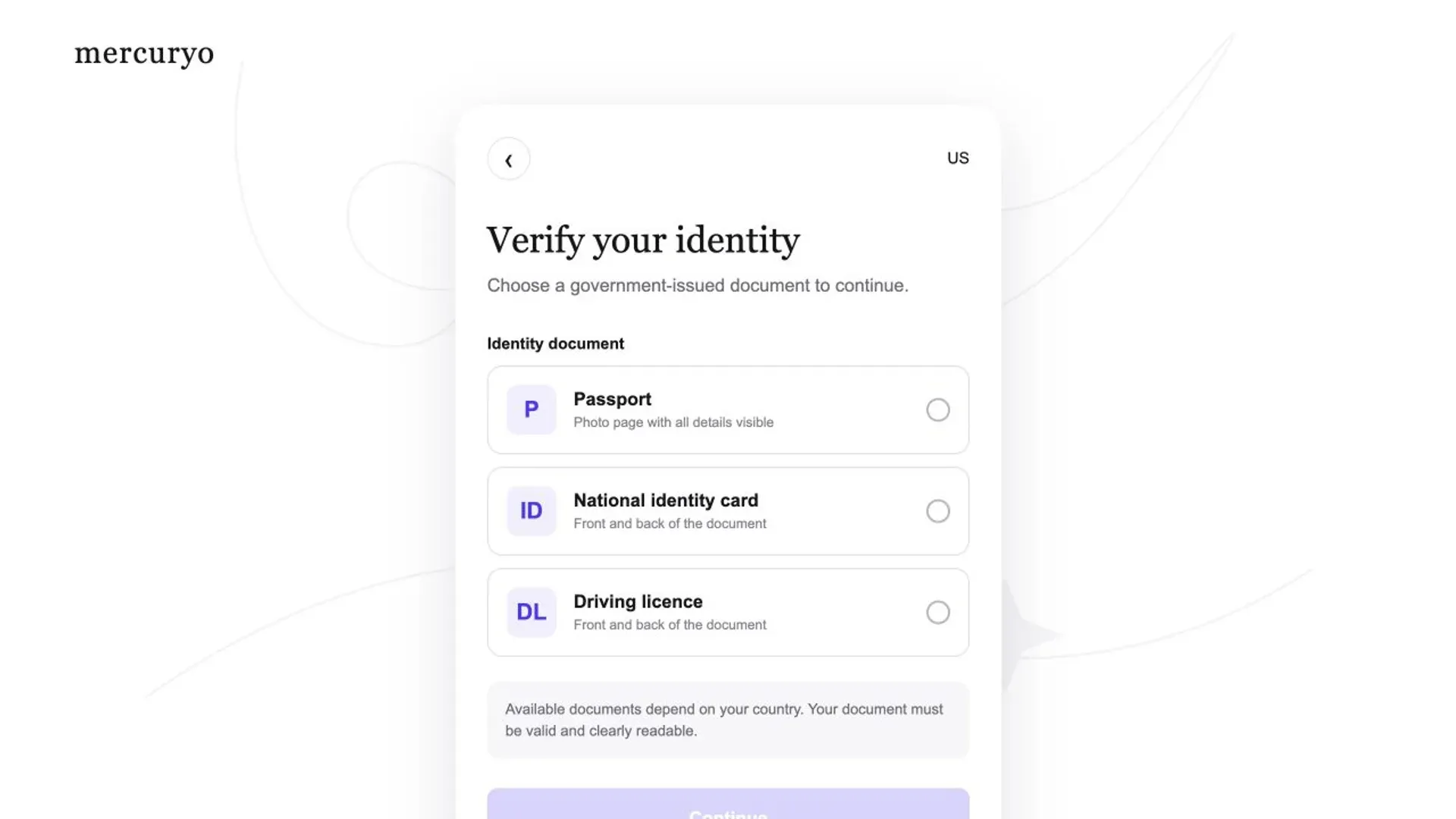
Mercuryo may ask you to verify your identity before processing the purchase.
Follow the instructions shown on the screen. The process can include:
- Entering your personal information
- Selecting an accepted government-issued document
- Uploading clear images of the document
- Completing a selfie check
- Submitting the information for review
Accepted documents depend on your country. Mercuryo states that verification can require a passport, national identity card, driving licence, or another supported document.
Use an unexpired document. Make sure the information matches your Mercuryo account.
Read the Mercuryo identity verification guide for current document requirements.
Step 9 - Pay With Your Bank Card
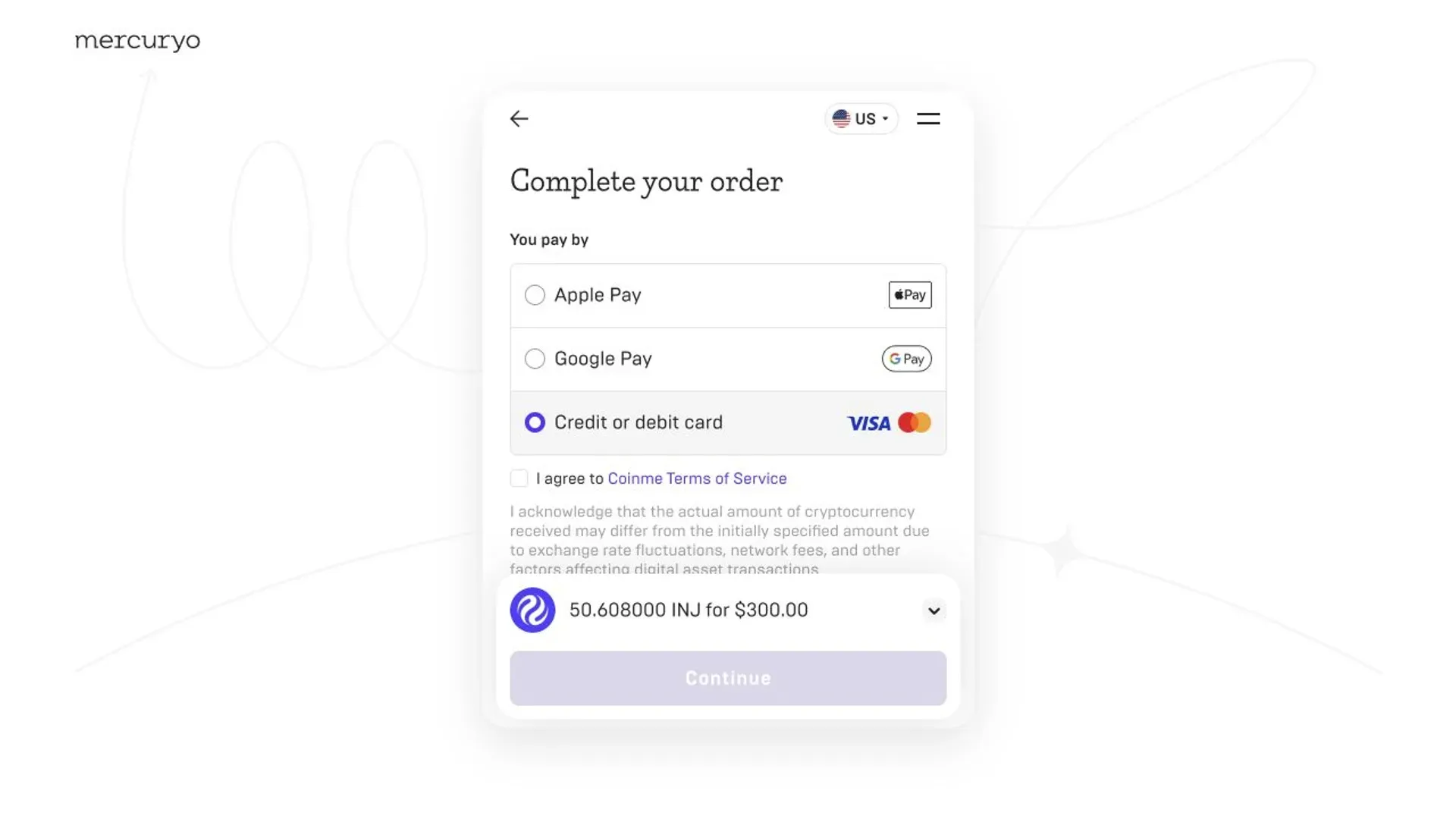
Choose the bank card payment option.
Enter the requested card details. Review the purchase amount and final charge before submitting the payment.
Mercuryo currently supports Visa, Mastercard, and Maestro card payments. Your bank can still decline the transaction if it blocks cryptocurrency purchases or international payments. Payment availability also depends on your region and currency.
Read Mercuryo’s supported payment methods before purchasing.
Your bank may open a 3D Secure confirmation screen. Approve the payment through your bank’s app, website, or verification prompt.
Step 10 - Track the Purchase and Verify Your INJ
Mercuryo will show the order status after the card payment is authorized.
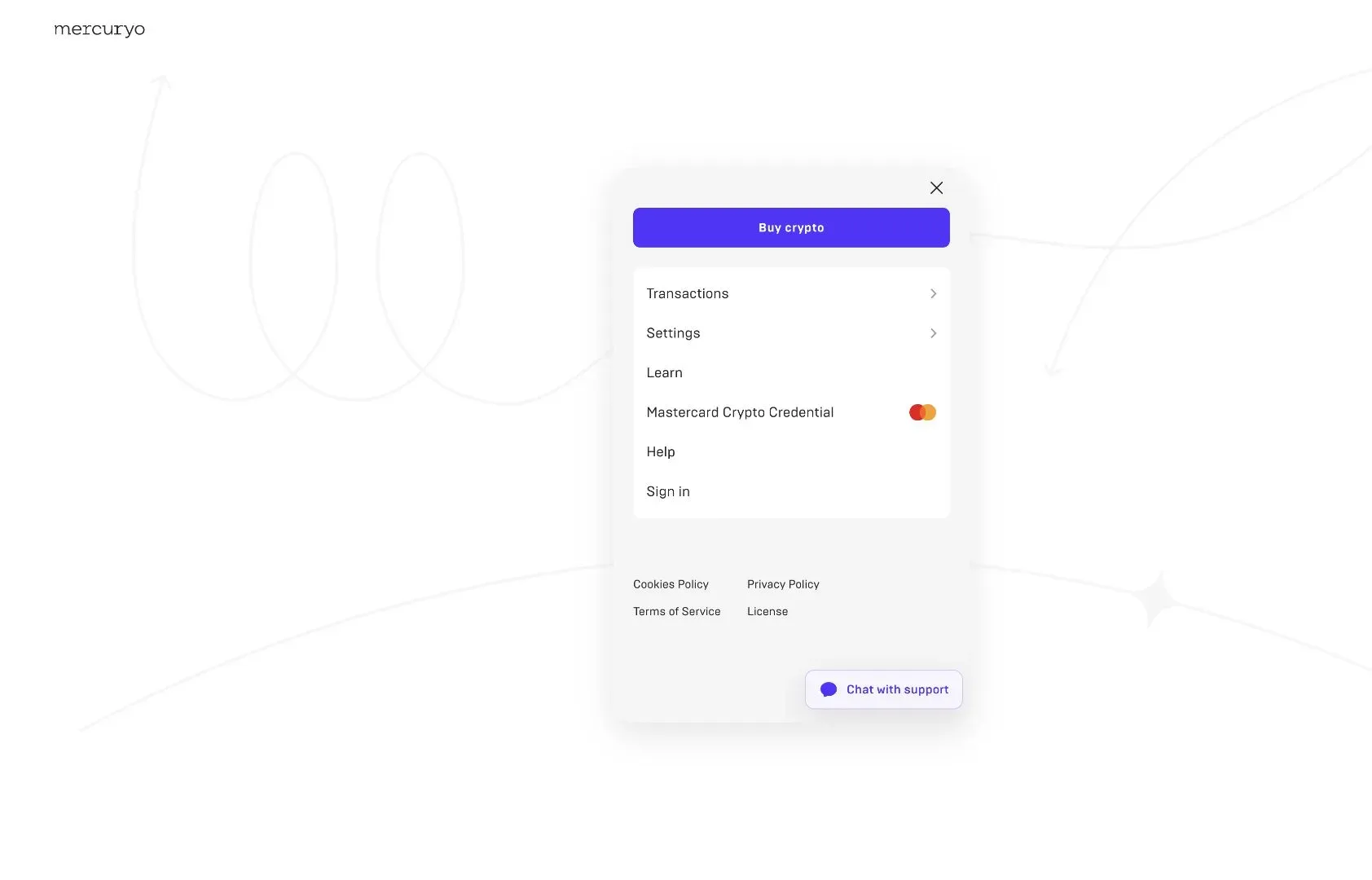
To check the transaction later, open the menu in the upper right corner of the Mercuryo widget and select Transactions. Sign in with the same email address, then open the INJ purchase.
Once Mercuryo provides a transaction hash, you can use it to track the onchain transfer.
Return to the Injective Hub and connect the same MetaMask or Keplr account. Open the wallet page and confirm that the INJ balance has arrived.
Processing time can vary. If the order remains pending, check its status inside Mercuryo before starting another purchase. Mercuryo provides more instructions in its transaction tracking guide.
Start using Injective
Your INJ is now in a wallet you control.
You can use the same MetaMask or Keplr account to access Injective applications, pay network fees, stake INJ, and participate in governance.
Open the Mercuryo widget, select INJ, and fund your Injective wallet with a bank card.
Disclaimer
This article is for informational purposes only. It is not financial, investment, legal, or tax advice.
Mercuryo is a third-party service. Availability, identity requirements, supported cards, limits, exchange rates, fees, and processing times depend on the user and region. These conditions can change.
Review Mercuryo’s terms and the final purchase quote before confirming a payment. Cryptocurrency transactions cannot be reversed after execution. Verify the Mercuryo domain, selected asset, destination address, amount, and fees before completing the purchase.

About Injective
Injective is a lightning fast interoperable layer one blockchain optimized for building the premier Web3 finance applications. Injective provides developers with powerful plug-and-play modules for creating unmatched dApps. INJ is the native asset that powers Injective and its rapidly growing ecosystem. Injective is incubated by Binance and is backed by prominent investors such as Jump Crypto, Pantera and Mark Cuban.
Website | Telegram | Discord | Blog | Twitter | Learn | Youtube | Facebook|LinkedIn | Reddit | Instagram | Orbit Newsletter