Raydium lets you trade INJ and provide liquidity on Solana. Swap USDC for INJ, or add both tokens to the INJ/USDC pool to earn a share of trading fees while your position is in range.
This guide takes you from USDC in Phantom to your first INJ swap on Raydium. Follow the screenshots to select INJ, review your quote, and confirm the trade. Then learn how to set a liquidity range, open a position, collect fees, and withdraw your tokens.
What you need
- Phantom with your Solana account available
- USDC on Solana, to swap into INJ and to pair against INJ in the pool
- Sunrise INJ on Solana already in your wallet, if you're skipping ahead to the liquidity section
- SOL for network fees
INJ began trading on Solana on September 17, 2026, as a canonical SPL token issued through Sunrise, Wormhole Labs' token gateway. The mint address is 1NJMqVM4PadjuzYmeB7zV7q7DV8oB3ExaQCd9x6KsLz. Check this against whatever INJ you select in Raydium's token search. Native INJ on the Injective network is a different network balance.
Swap USDC for INJ
Step 1. Open Raydium and Connect Phantom
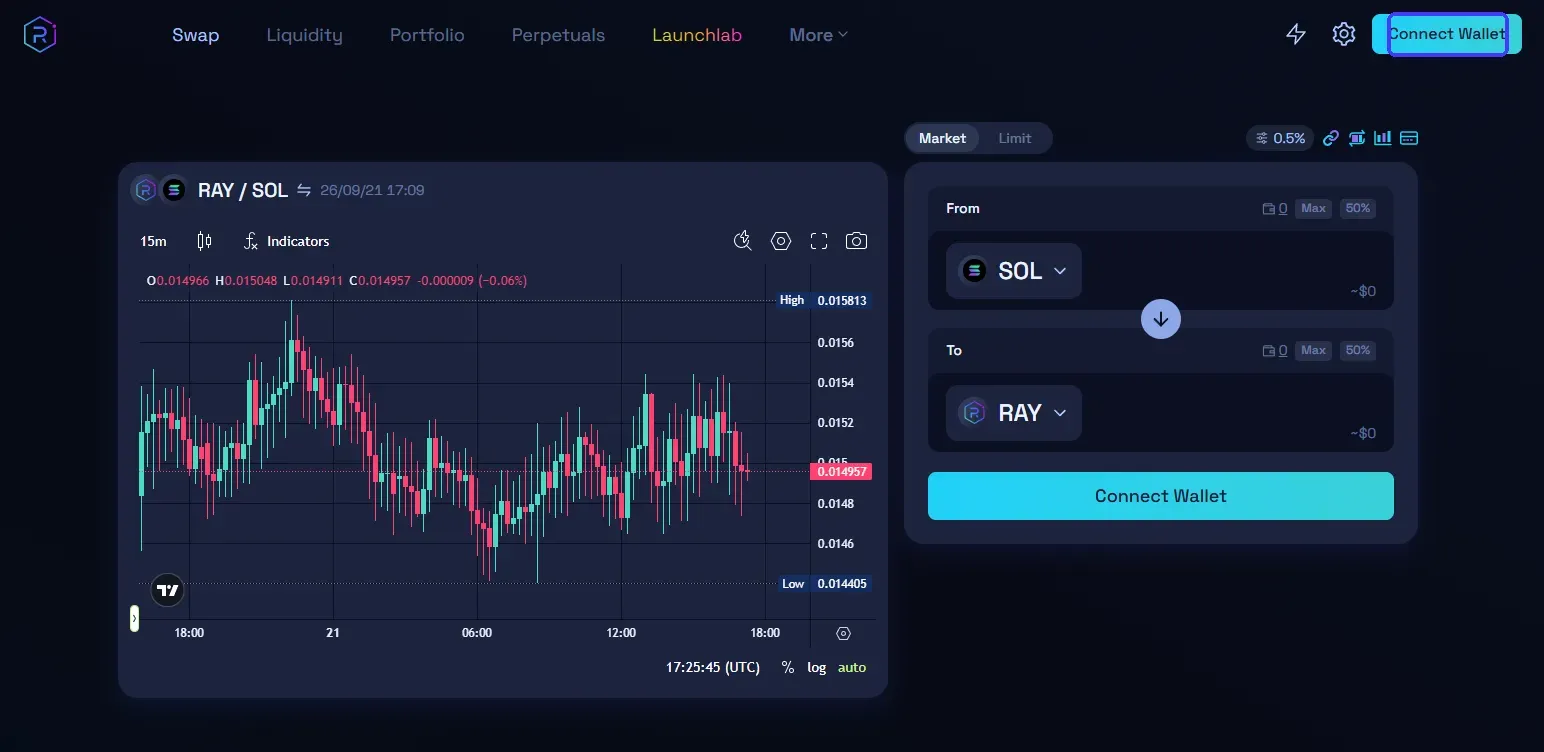
Go to raydium.io and select Connect Wallet in the top right. Choose Phantom and approve the connection from the account that holds your USDC and SOL.
Step 2. Select INJ as the Token You're Trading
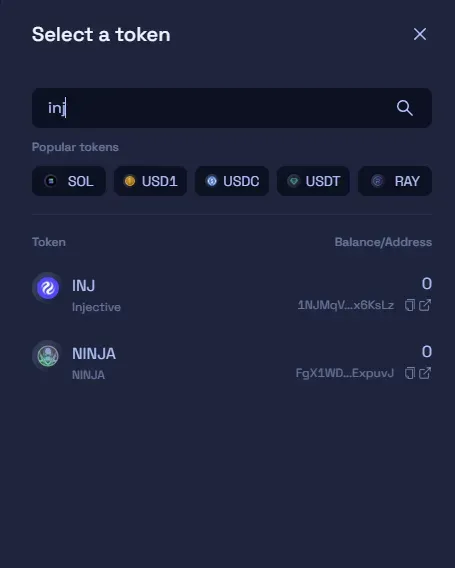
Open the token selector for the token you're receiving and search “inj.” Select INJ (Injective) — Raydium shows its mint address next to the result, worth checking against the address above since INJ is a recent listing.
Step 3. Enter an Amount and Review The Quote
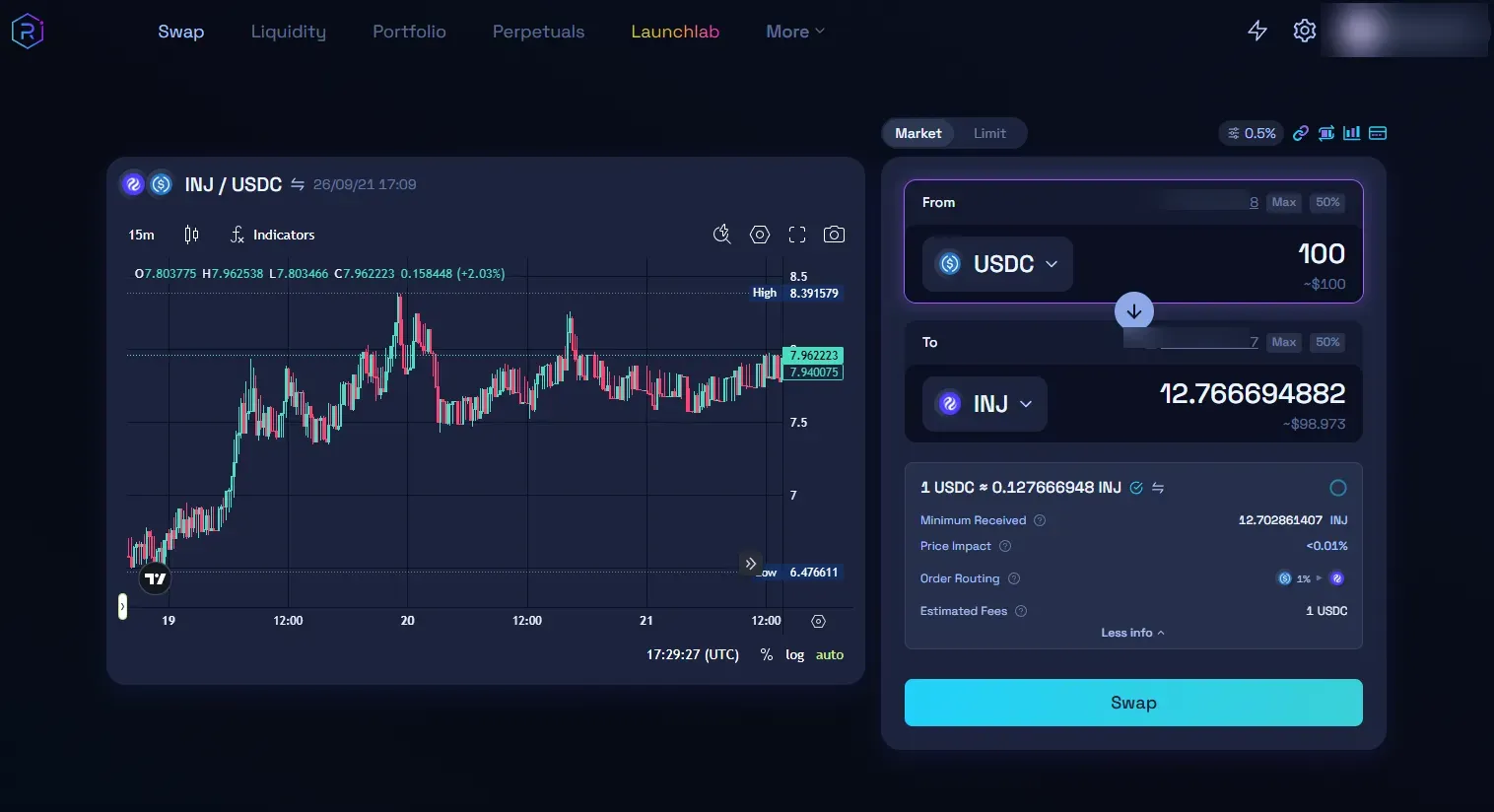
Enter the amount of USDC you want to swap. Review the quoted INJ amount, minimum received, price impact, and order routing before confirming.
Step 4. Confirm the Swap in Phantom
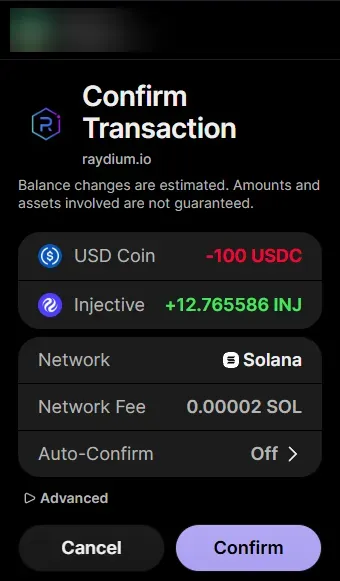
Select Swap, then approve the transaction in the Phantom popup. Once it confirms, your INJ balance updates in both Phantom and Raydium's wallet display.
Provide concentrated liquidity to the INJ-USDC pool
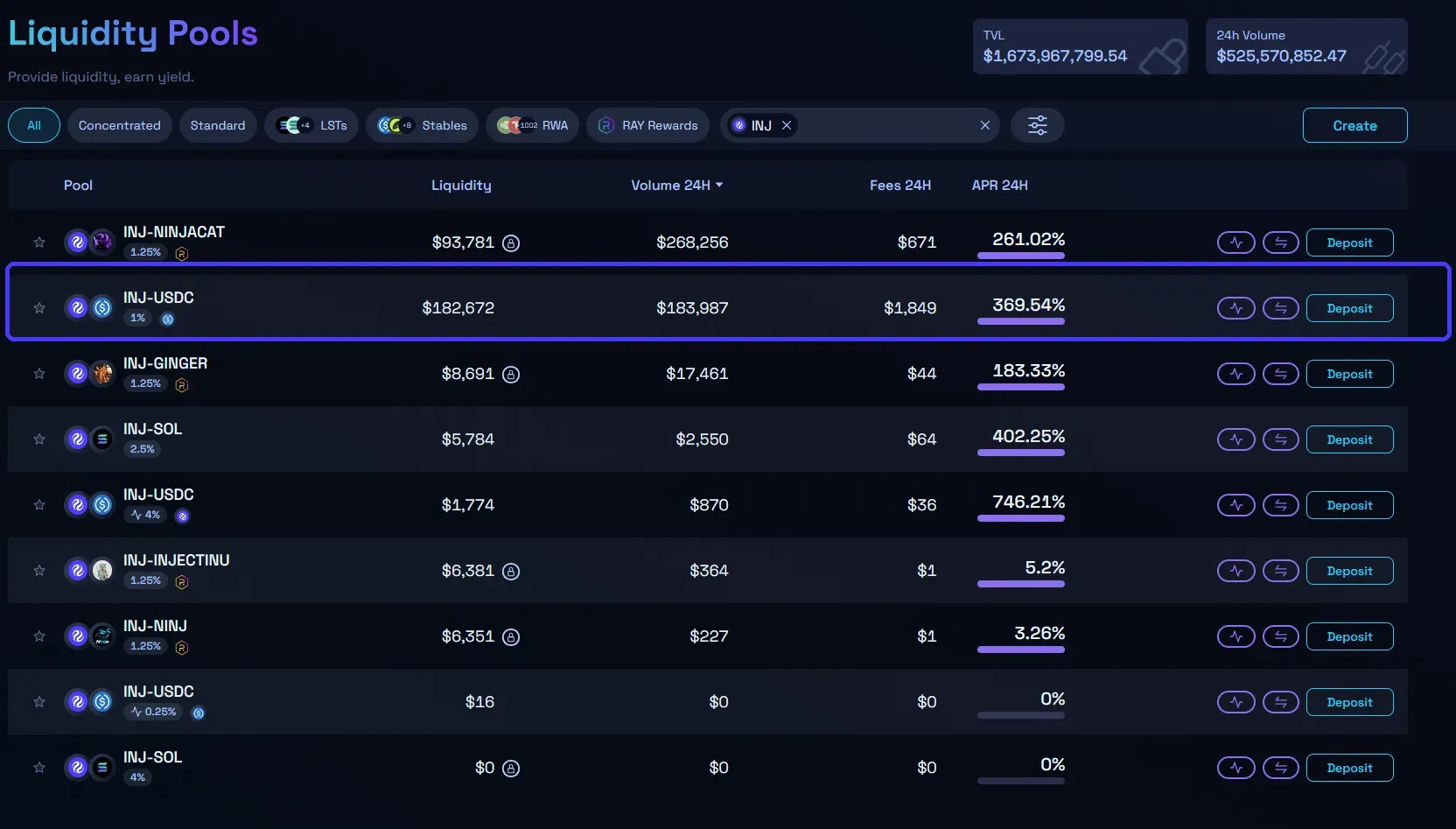
INJ-USDC is currently the most liquid INJ pair on Raydium, and it's listed as a concentrated liquidity (CLMM) pool. That means you pick a price range for your position instead of depositing across the full price curve — it can earn more fees per dollar inside that range, but earns nothing once the price moves outside it.
Step 1. Filter the Liquidity page by INJ
Go to the Liquidity tab and search or filter by INJ. Sort by 24H volume to see which INJ pair is most active, INJ-USDC currently leads the list by a wide margin.
Step 2. Click Deposit on the INJ-USDC Pool and Set Your Range
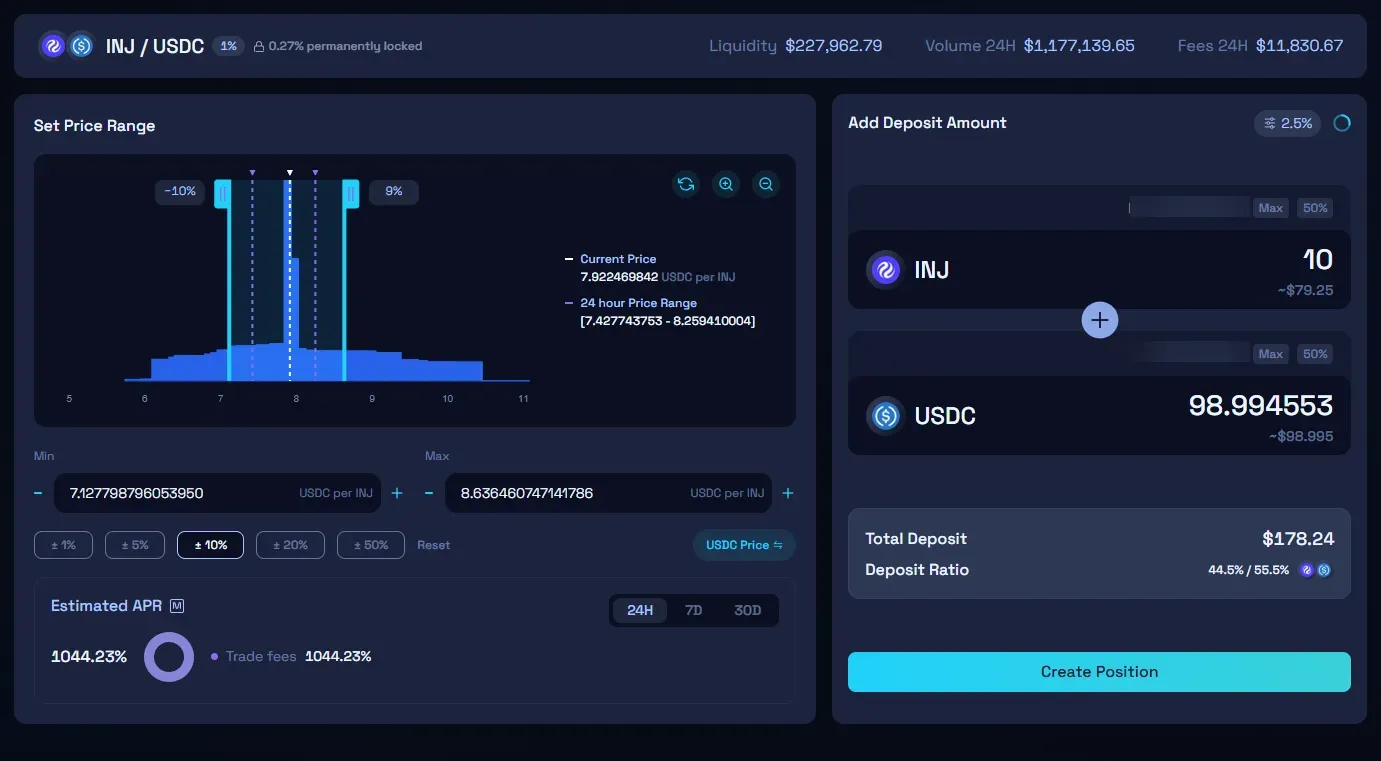
Select Deposit on the INJ-USDC pool, choose a price range or use one of the preset percentage buttons (±1%, ±5%, ±10%, and so on) to set it automatically around the current price. Enter an amount of one token; Raydium calculates the matching amount of the other based on your range and the current price.
A narrower range concentrates your capital and can earn more fees while the price stays inside it but moves out of range faster. A wider range earns less per dollar but stays active longer without adjustment. Select Create Position when you're ready to continue.
Step 3. Review the Deposit Preview
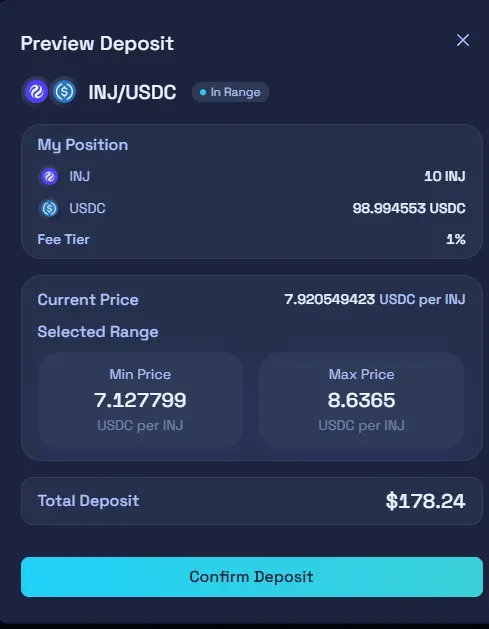
Raydium shows a Preview Deposit summary before you sign anything: your position's token amounts, fee tier, current price, and the range you selected. Confirm these match what you intended, then select Confirm Deposit.
Step 4. Confirm the Deposit in Phantom
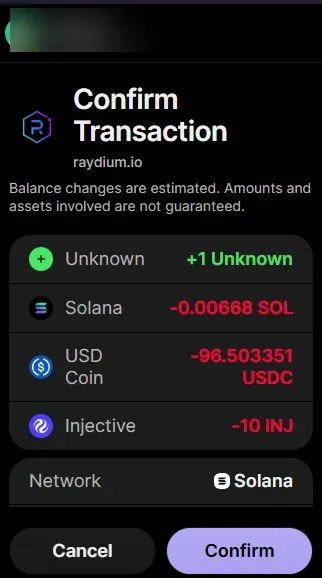
Approve the transaction in the Phantom popup. It shows an incoming NFT (labeled “Unknown”, this is your new position, not a token you'll recognize), the SOL network fee, and the INJ and USDC leaving your wallet.
Step 5. Save your position NFT
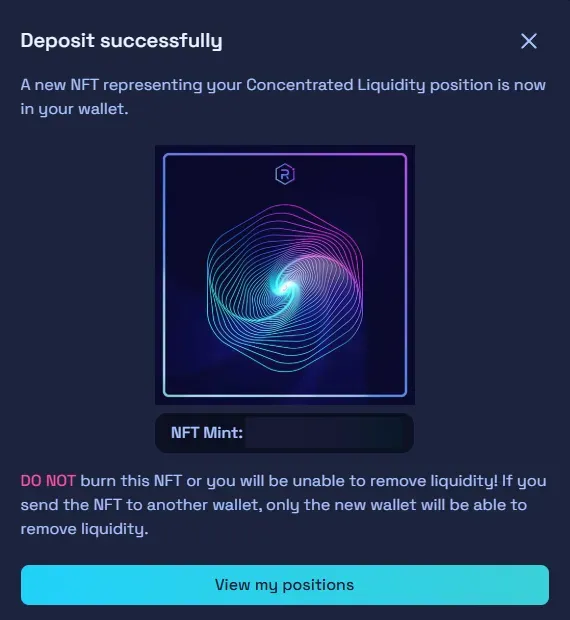
Once the deposit confirms, Raydium mints an NFT representing your position and shows its mint address. Raydium's own warning here is worth repeating: don't burn this NFT, or you'll lose the ability to remove your liquidity and if you send it to another wallet, only that wallet will be able to remove it afterward.
Step 6. Find and Manage Your Position Later
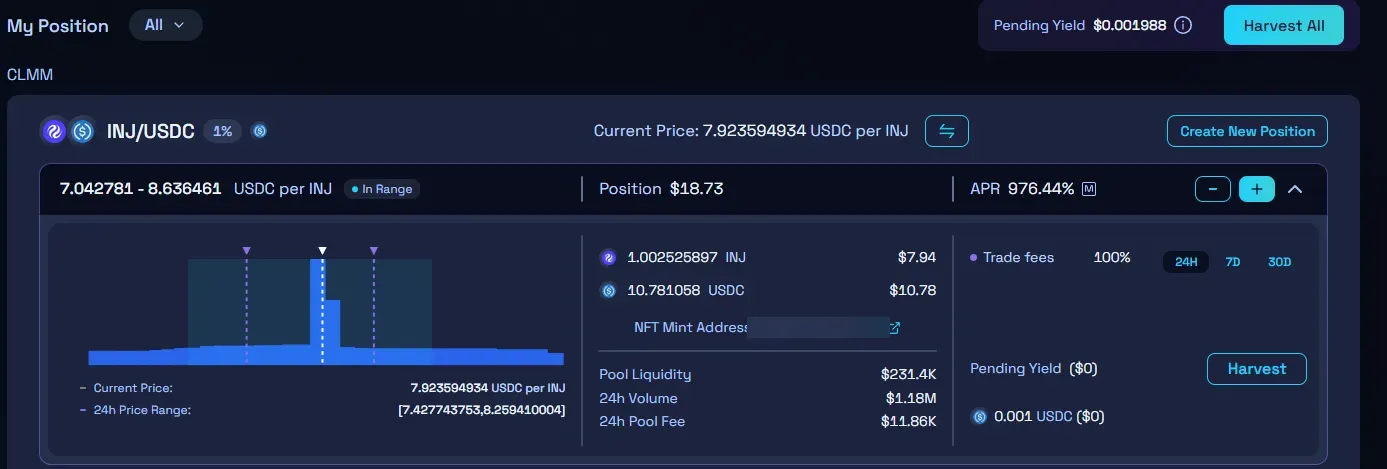
Open Portfolio to see the position: its range, whether it's in range, current value, and APR. Fees and any rewards accrue as Pending Yield, which you can withdraw with Harvest without touching your deposited liquidity.
Select + to add more liquidity to the position, or – to withdraw some or all of it.
Step 7. Remove Some or All of Your Liquidity
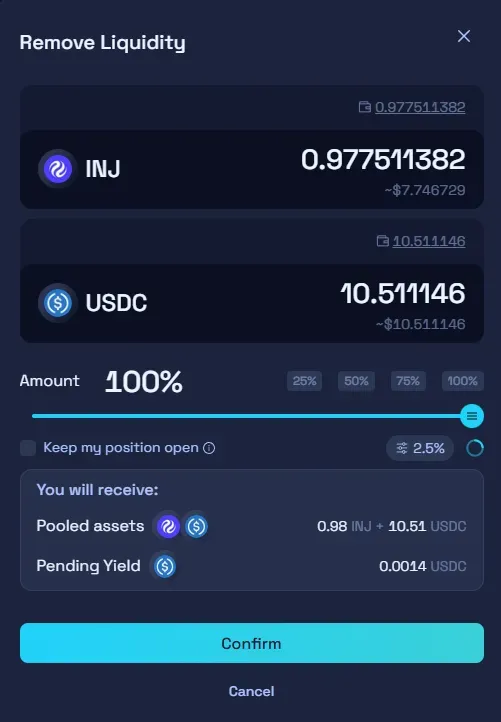
Selecting – opens Remove Liquidity. Choose a percentage, or drag the slider, and check Keep my position open if you only want to withdraw part of it and deposit again later. Leave it unchecked to close the position and burn the NFT.
Review the tokens and pending yield you'll receive, then confirm in Phantom.
Common errors
INJ Doesn't Appear In The Token Search
Search by name first. If it still doesn't show up, paste the mint address directly: 1NJMqVM4PadjuzYmeB7zV7q7DV8oB3ExaQCd9x6KsLz. Raydium prompts for a contract address on any token outside its default list.
The Swap Fails or Shows a High Price Impact
Reduce the trade size, or raise your slippage tolerance in the settings gear if the transaction reverts with an exceeded-slippage error. A newly listed pair moves more per trade than an established SOL or USDC pair.
The Position Isn't Earning Fees
Concentrated liquidity only earns fees while the pool price sits inside the range you set. Open Portfolio and check whether the position still shows In Range — if the price has moved past your min or max, it's earning nothing until it moves back or you adjust the range.
The Wallet Has INJ and USDC but the Transaction Won't Confirm
Check your SOL balance. The swap, the liquidity deposit, and the withdrawal are all paid in SOL network fees, separate from the tokens you're trading or depositing.
Liquidity Can't Be Removed
Only the wallet holding the position NFT can remove that position's liquidity. If the NFT was burned or sent to a different wallet, connect with that wallet instead — there's no way to recover a removal right without it.
Put INJ to Use
Open Raydium to swap into INJ or add liquidity to the INJ-USDC pool. Check the pair, the pool type, and the current price range before confirming any transaction — volume, fees, and APR on the Liquidity page move constantly.